Losing and resetting passwords can be quite frustrating, especially if you are working as an IT guy, who have to reset passwords every day for other employees. The same thing could happen in the cloud, especially for SysOps admins. However, there are scenarios where you’ll have to change the Azure VM administrator password periodically. I have already talked about resetting database passwords on the Azure SQL Database service, covered in How to recover lost admin password for an Azure SQL Database using Azure CLI. This time, i’ll focus on how to reset passwords on the Azure Virtual Machines service.
There are four ways to change an Azure VM user password, including:
- Azure Portal
- Azure CLI
- PowerShell cmdlets
- ARM Templates
Prerequisites
- Azure subscription
- Azure VM
Reset Azure VM password using the CLI
Step 1. Open Terminal and login to the Azure Portal:
az login
It will open a new window using the default browser, where you will be prompted for email and password.
Step 2. Run the command:
az vm user update --name "vm-test" --resource-group "azure-vm-test" --username "devcoops" --password "<insert_new_password_here>"
Reset Azure VM password using the Azure Portal
Step 3. Login to the Azure Portal and go to Virtual Machines.
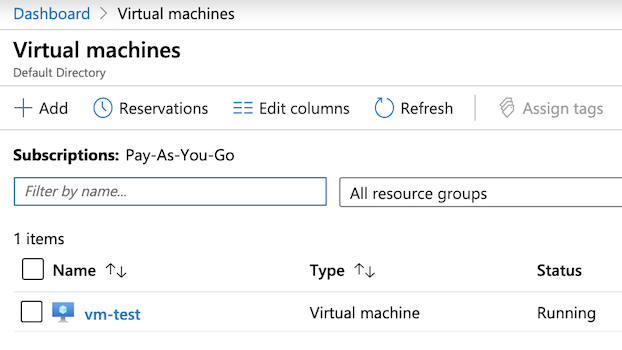
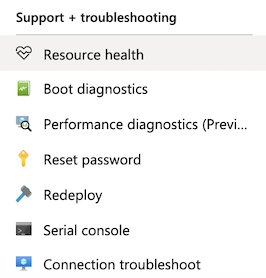
Step 4. Click on the instance, and in the new window, under Support + troubleshooting, click Reset password.
Step 5. On the Reset password tab, you can choose the following modes:
- Reset password.
- Reset SSH public key.
- Reset configuration only (resets the SSH configuration).
I’ll write about the SSH configuration in the future, so for now, just click on Reset password, and enter the username and the new password.
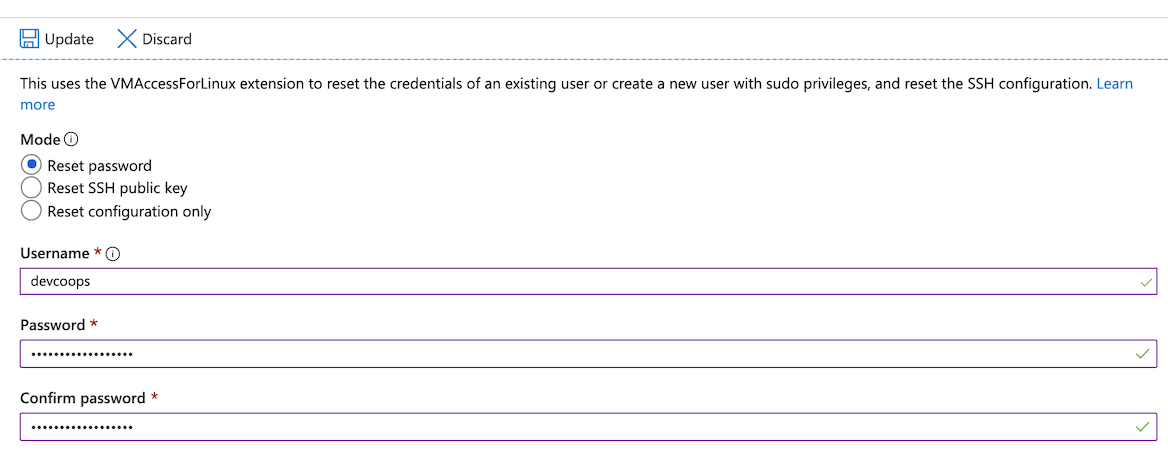
Step 6. Click Update.
Conclusion
The Azure CLI could be quite useful, especially when there is a password policy that requires periodically changing passwords for security purposes. You could also write and schedule a script, that will generate a random password, execute the Azure CLI command to reset the password, and send the password securely via email, or even store it into a Azure Key Vault. My 2 cents is to always use automation when possible.
Feel free to leave a comment below and if you find this tutorial useful, follow our official channel on telegram.