
Git LFS allows users to save space by storing binary files in a different location, so in this tutorial I’m going to show you how can you operate and manage your repo with Git LFS.
Prerequisites
- GIT Installed
- Bitbucket account and repository
Installing Git LFS
In this tutorial, we will use Centos 7 as a host machine to install and work with git lfs. Before installing git lfs, we need to make sure that git is already installed on your machine. To check this run:
sudo git --version
You should see the output like below:
Output: git version 1.8.3.1
Next, install the epel repo by using the following command:
sudo yum install epel-release
To install the git-lfs repo, run:
curl -s https://packagecloud.io/install/repositories/github/git-lfs/script.rpm.sh | sudo bash
And finally:
sudo yum install git-lfs
That’s it, we successfully installed git-lfs.
Clone Bitbucket repo with Git LFS
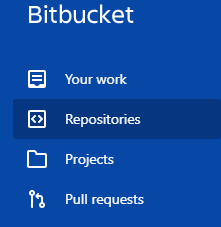
Step 1. Log in to your Bitbucket account, navigate to the Repositories and open it:
Next, we will clone that repo to our Centos 7 machine.
Step 2. Create a directory project and navigate to that directory with the following commands:
sudo mkdir ~/project
sudo cd ~/project/
Now you should clone your repository to the local machine:
sudo git clone git@bitbucket.org:repo-name/project.git
If you receive the follwoing error:
Permission denied (publickey).
fatal: Could not read from remote repository.
you need to set up SSH keys and configure it with Bitbucket.
Step 2. From your project directory initialize git lfs:
sudo git lfs install
Fetch the LFS objects for the current ref from default remote:
sudo git lfs fetch
And now download Git LFS objects for the currently checked out ref:
sudo git lfs pull
Conclusion
In this tutorial, we shown you how to use git lfs with Bitbucket repository. Feel free to leave a comment below and if you find this tutorial useful, follow our official channel on telegram.